CygNet Config File Manager
The CygNet Config File Manager is a configuration file management tool used to centrally manage all configuration files in your CygNet system (from both local and remote servers) even if you aren’t currently running the application on the host server. The tool will allow you to edit (via manual and mass-modification options) and validate your configuration files in one central location. The application can be used to perform the following actions:
- Update all configuration files running on the local server with keywords and values for the current CygNet Software release. This may include adding new keywords, removing obsolete keywords, and updating keyword values as necessary. See Migrate configuration files.
- Retrieve and edit keywords in configuration files running on the local server. See Edit local configuration files and Editing Keywords.
- Retrieve and edit keywords in configuration files from live services running anywhere in your CygNet environment. This feature simplifies the task of editing multiple configuration files for users of Replication, Failover, and Redundancy. See Edit remote configuration files and Editing Keywords.
- Import keyword values from or export keyword values to a CSV file for external modification. See Import and Export Keywords.
- Validate keyword values in configuration files from your local and remote services. See Validating Keywords.
- Automatically restart remote services (all services except RSM and ARS). See Restarting Services.
Important: If you make a change to a configuration file using this utility, you must stop and restart the service(s) for the change to become effective. Each service reads the file only at startup.
All files to which changes are made are stored in their respective directories as backups. See Restoring Backup Files below.
See the SVCINFO Security Event for the applicable CygNet Service in the Security Reference topics for more information about security access levels for performing certain tasks using the CygNet Config File Manager.
To Start CygNet File Manager
The CygNet Config File Manager is stored in the CygNet\Bin directory (ConfigFileMgr.exe) on the host server. To start the utility, use Windows Explorer to browse to the directory and double-click the program icon.
Important: The CygNet Config File Manager requires that the Microsoft .NET Framework is installed on the computer where the application is run, in accordance with the CygNet system requirements. See the CygNet v9.8 System Requirements for more information.
Note: You can also set up this utility to be installed and launched (started) via CygNet Client Installer so that the application can be version managed. See Version Management for instructions on how to do this.
The Config File Manager is version-specific. Be sure that you use the correct version for your system.
|
Click the thumbnails to see |
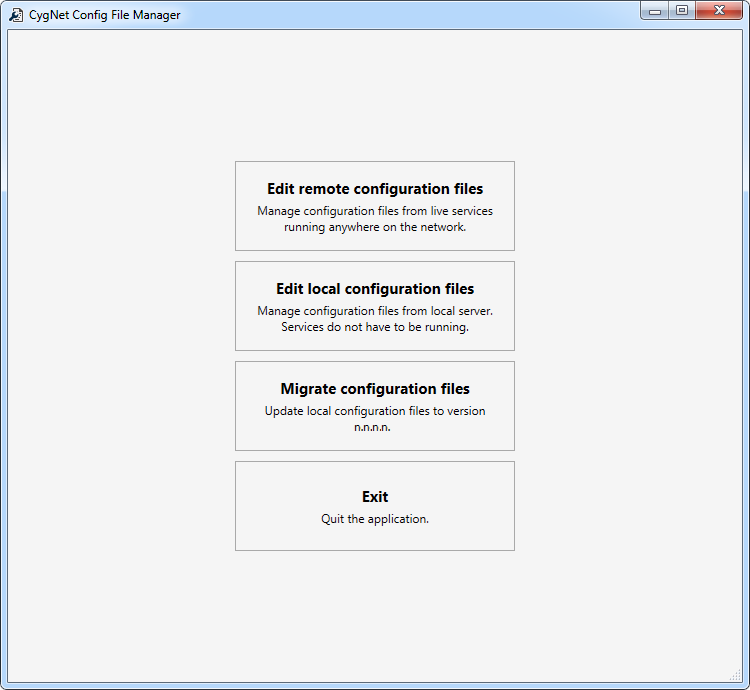
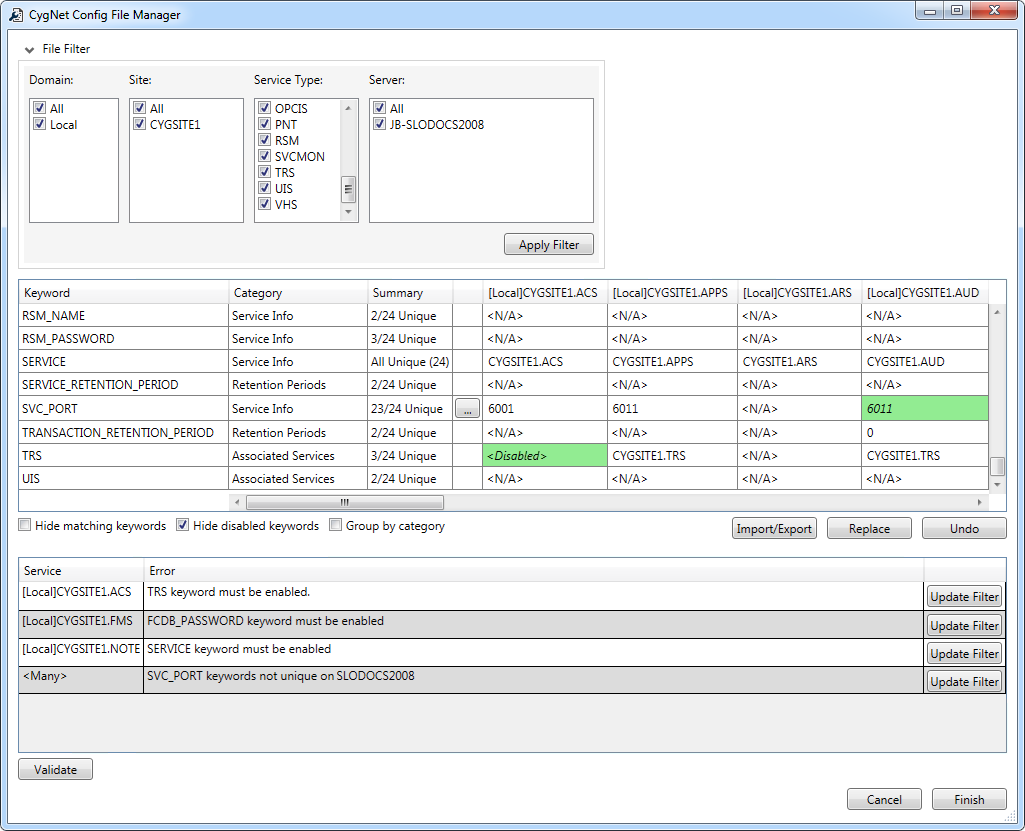
Config File Manager Options
When you start the Config File Manager there are four options on the load page. Each option is described in subsequent topics.
Restoring Backup Files
The Config File Manager does not include an Undo option, but all configuration files are saved as backups, and can be manually restored if needed. When a configuration file is updated, the old version is saved with the same file name, but with "bk1" appended as the extension. This stands for "Backup 1." If a bk1 file already exists for the configuration file, this file is incremented to bk2, and so on. Up to nine backup files can be stored in the directory for a single configuration file.
Backup files can be viewed in a text editor such as Notepad. To restore a backup file as the configuration file, delete the current configuration file (.cfg file), then remove the ".bkx" extension from the backup file (where x is the number of the backup file that you want to restore), so that its extension is ".cfg" again.
Log File Format
Logged information for the Config File Manager is written to the ConfigFileMgr001.csv file stored in the CygNet\Bin directory on the host server. Note that a comma-separated values file is best viewed using a spreadsheet program such as Microsoft Excel.
More:
 Filtering Configuration Files and Keywords
Editing Special Action Keywords


